Conditional Access policies: what exactly are they, and where do you start?
I kept getting asked where to start with Conditional Access, and I never had a link I was happy to send. The Microsoft docs are good but they’re a reference, not a route. The blog posts are either a screenshot tour of one policy or a 40-policy “ultimate guide” that nobody deploys. So I wrote the link.
This is the order I’d build a Conditional Access baseline in, with the reasoning and the traps attached. It assumes a normal commercial tenant: a few hundred people, Microsoft 365, some devices in Intune, an admin who has other things to do.
What Conditional Access actually is
When someone signs in, two things happen. First the identity platform checks the first factor — a password, a passkey, or a federated sign-in. Then, before it hands back the token that actually gets them into Exchange or SharePoint or a SaaS app, it runs your Conditional Access policies.
Each policy is an if this, then that. If this user, on this device, from this network, to this app, with this much risk on the sign-in — then allow, or block, or require MFA, or require a compliant device, or shorten the session. That’s the whole model. Everything else is detail.
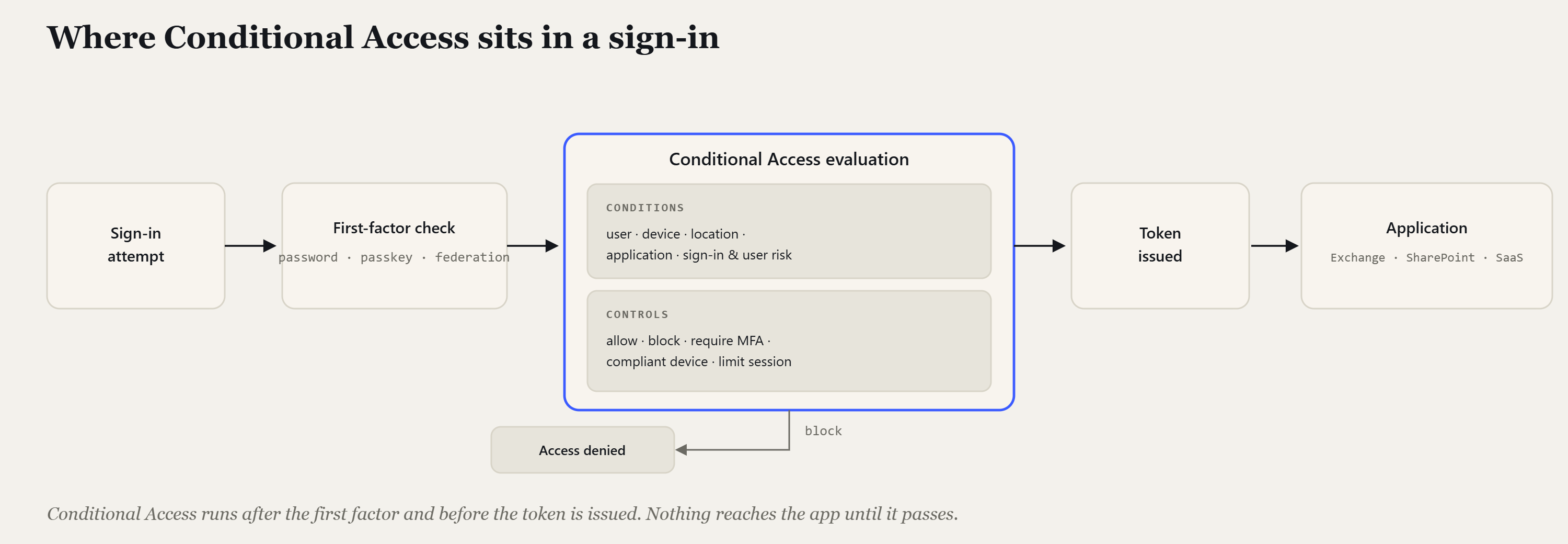
In Zero Trust language, Conditional Access is mainly the verify explicitly and assume breach engine — the gate at sign-in. Microsoft’s docs also credit it against least privilege, but that pillar mostly lives elsewhere: Privileged Identity Management, entitlement management, permissions inside each app. Conditional Access decides whether the door opens. It doesn’t decide what’s in the room.
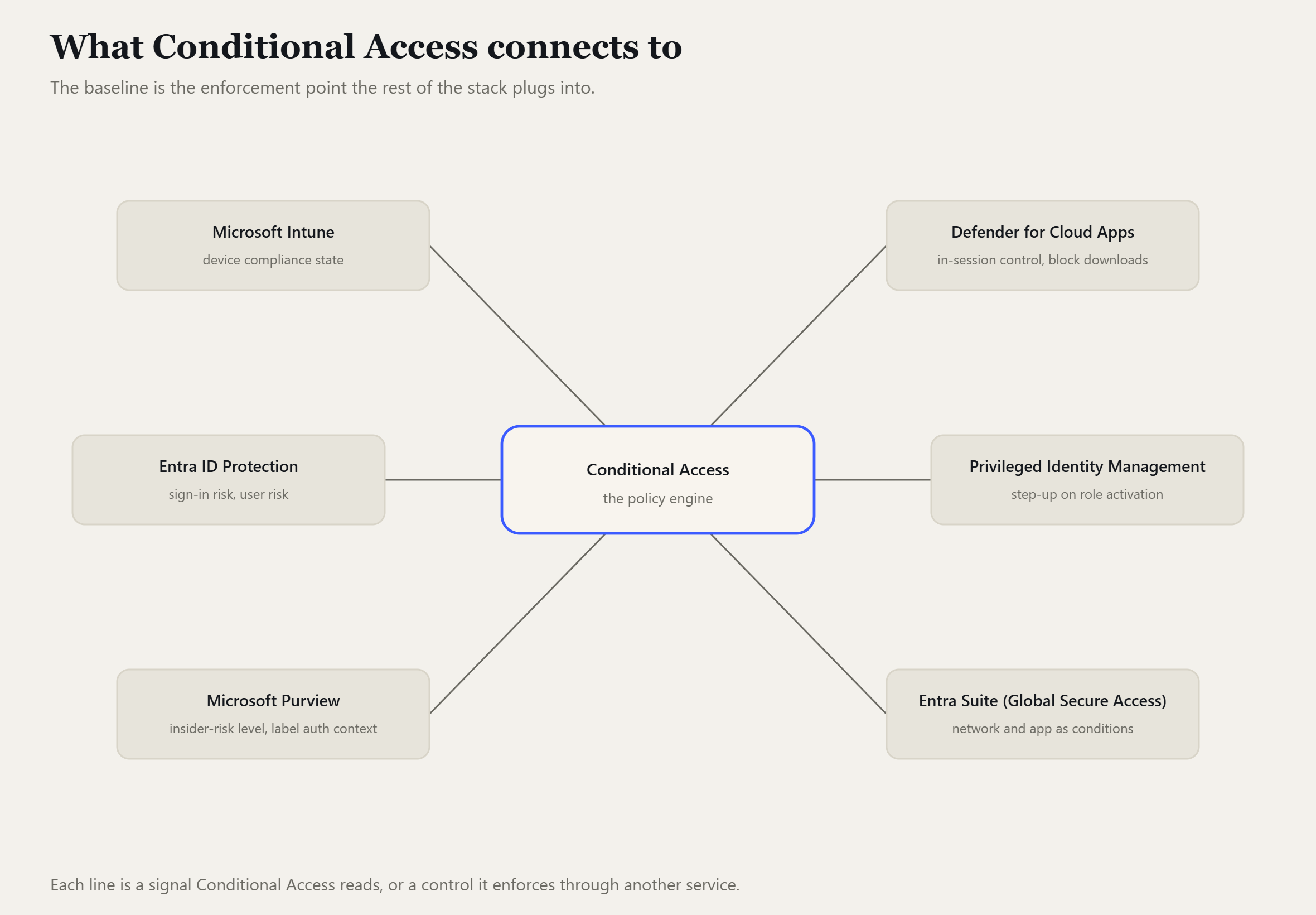
It’s also the plug socket for a lot of the rest of the Microsoft stack. Device compliance from Intune, session control from Defender for Cloud Apps, risk signals from ID Protection, insider-risk levels from Purview, step-up for a sensitive document or a PIM activation. All of it surfaces as conditions or controls inside a Conditional Access policy. Get the baseline right and you’ve built the thing everything else hangs off.
You don’t have “no security”, you have scattered security
Almost nobody starts from zero. What you usually inherit is three half-built policies someone made in 2022, Security Defaults still switched on, an MFA registration free-for-all, and a legacy protocol nobody turned off. The job isn’t “add security.” It’s to replace the scatter with something deliberate, in an order that doesn’t lock anyone out on the way.
So before any policy goes in:
- Check your licensing. Custom Conditional Access needs Entra ID P1 (you get it with Business Premium, or Microsoft 365 E3 / E5 / F3). Risk-based policies, the ones that react to a suspicious sign-in, need Entra ID P2 (E5, or the standalone add-on). No P1? You’re on Security Defaults, and this is your migration target rather than something you can do today.
- Look at what’s already there. Classic policies stopped enforcing on 10 July 2024. If you still have any, copy down what they did and disable them (you can’t re-enable one once it’s disabled). Microsoft also auto-creates a set of policies — Microsoft-managed policies — covering block legacy auth, block device code flow, MFA for admins, MFA for all users, and the risk-based policies. They arrive in report-only and Microsoft turns them on after about a month. You’ll find policies you didn’t make. They’re a baseline shortcut and the supported way to bridge off Security Defaults, so read each one, exclude your break-glass accounts, and decide whether to adopt or replace it.
- Know your break-glass accounts. Two cloud-only Global Admin accounts on the
.onmicrosoft.comdomain, long unique credentials stored offline, a phishing-resistant method that differs from your normal admin sign-in, excluded from every policy, sign-in activity alerted on. Set these up first. They are the reason a bad policy is an inconvenience instead of a lockout. - Inventory legacy authentication. Sign-in logs, filter for the legacy protocols on both the interactive and non-interactive tabs. That’s your list of scanners, multifunction printers and line-of-business apps still on POP / IMAP / SMTP AUTH and Exchange ActiveSync. You need it before policy 1.
- Be honest about Intune. The device-compliance policies below only mean something if devices are actually enrolled and the compliance rules actually check something. If they’re not, “require a compliant device” just means “block everyone.”
- Run an MFA registration campaign so people have a method registered before you start requiring it.
One more thing worth knowing. Microsoft now mandates MFA on the admin and management
surface: the Azure portal, the Entra and Intune admin centres, and — from 1 October 2025
— the Azure CLI, PowerShell, infrastructure-as-code and the REST API, for any create,
update or delete (reads are exempt). That’s a floor, not a ceiling. It only covers those
management tools (requests to management.azure.com, not Microsoft Graph). It does
nothing for someone opening Outlook, which is most sign-ins, and your Conditional Access
exclusions don’t apply to it. Which means your break-glass accounts need a real MFA
method — a passkey or a certificate — not just a very long password.
The baseline, in order
Every policy below goes in the same way: report-only first, then a pilot group, then everyone. Break-glass excluded from all of them. Don’t switch anything straight to on.
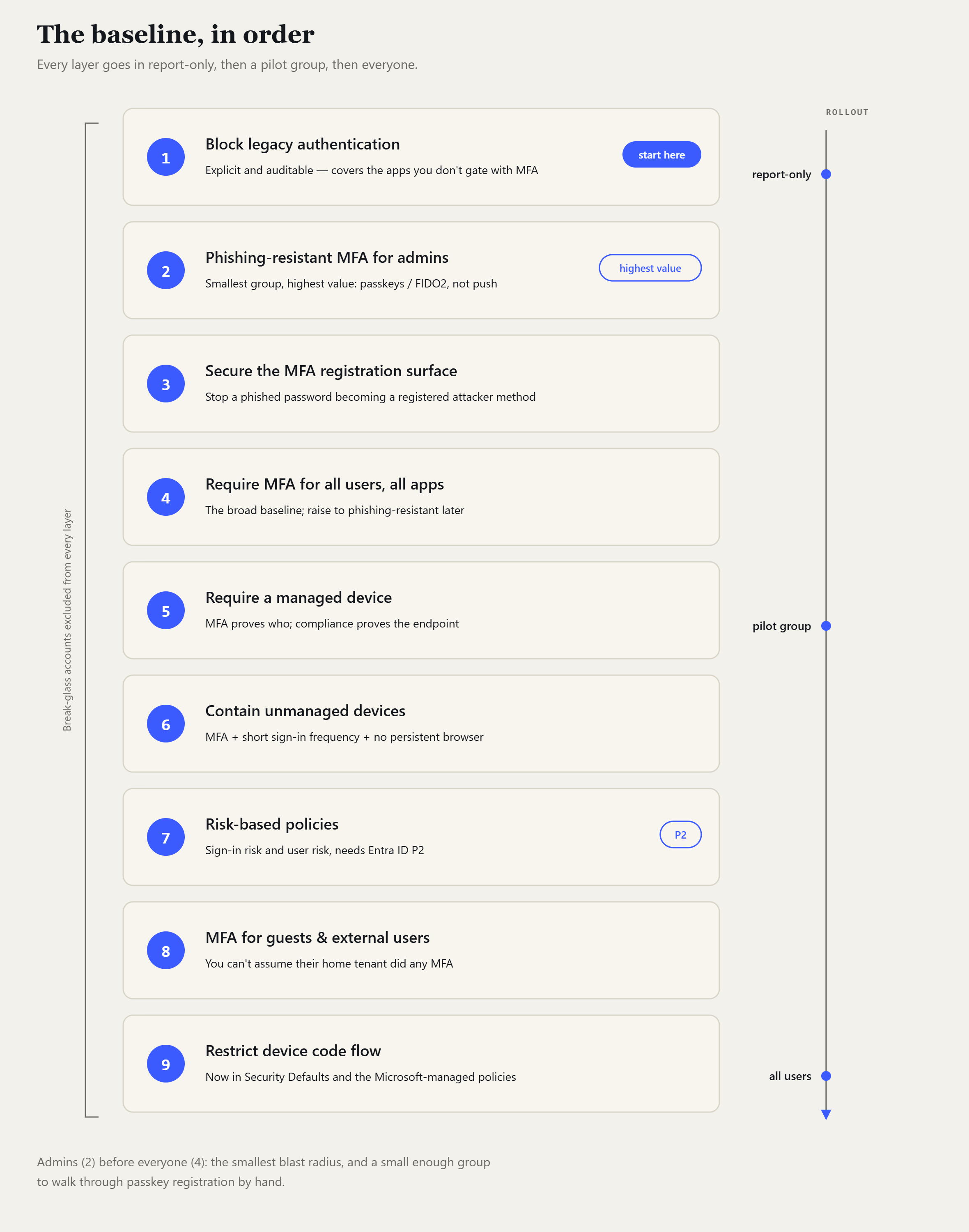
1. Block legacy authentication
Legacy protocols can’t do MFA and can’t do device checks. Your MFA-for-all policy blocks them as a side effect — a legacy client can’t satisfy an MFA prompt — but a dedicated block policy is cleaner, explicit, auditable, and covers the apps you don’t gate with MFA. It’s Microsoft’s first “secure foundation” policy: highest priority, lowest risk. Target the Exchange ActiveSync clients and Other clients client-app types and set the grant to Block.
The care factor is the inventory you did earlier. A blocked ActiveSync client gets a polite error; a blocked SMTP AUTH scanner just goes quiet and someone notices three days later that invoices aren’t arriving. Move those to a supported auth method, or give them a tightly scoped exception, before you enforce.
2. Phishing-resistant MFA for admins
Admin accounts are the highest-value target and the smallest group. Do them properly, and before the broad rollout. Push notifications and SMS can be phished, so “any MFA” isn’t the bar here. Use the Phishing-resistant MFA authentication strength: passkeys / FIDO2, Windows Hello for Business, or certificate-based auth.
This assumes your admins actually have a phishing-resistant method registered. Provision it before you enforce; a Temporary Access Pass covers the gap while they enrol. Service accounts sitting in admin roles should move to workload identities rather than getting carved out as exclusions.
3. Secure the MFA registration surface
If someone phishes a password, the very next thing they try is registering their own MFA method against the account. So lock registration itself down: a policy on the Register security information action that requires MFA (for anyone who already has a method) plus either a trusted network or a compliant device.
Do this before you push the whole company to register in policy 4, and make sure your new-starter process can still issue a Temporary Access Pass for the genuine first-time case.
4. Require MFA for all users, all apps
The broad baseline. Target all resources with no app exclusions. It’s Microsoft’s own recommendation, because every exclusion is a low-privilege gap someone will find.
This is the policy most likely to generate helpdesk calls, so time it well and make your pilot group the people who’ll actually tell you what broke. Watch out for guests (policy 8), and for non-interactive and service sign-ins.
“Any MFA” is where you start, not where you stop. Once this is enforced and passkey adoption is broad, come back and raise the strength on this policy to phishing-resistant for everyone. That’s the direction both CISA’s Microsoft 365 baseline and Microsoft’s own guidance point. Sequence it after enforcement, never before; pushing passkeys company-wide while this policy is still in report-only is how you strand people.
5. Require a managed device for real computers
MFA proves who. Device compliance proves the endpoint is patched, encrypted and enrolled. Together they’re the Zero Trust baseline for access from a laptop or desktop. The grant control is “compliant device or hybrid-joined device.”
This one genuinely depends on Intune being real. Start with your most sensitive apps (finance, HR, the admin portals) and expand from there. Report-only is not optional here.
Note in passing: the old Require approved client app control went read-only for new and edited policies on 30 June 2026. Use Require app protection policy instead. Same idea, better implemented.
6. Contain unmanaged devices
You don’t have to block personal devices outright, but an unmanaged browser session shouldn’t last 90 days or leave refresh tokens on a home laptop. So for access from a device that isn’t compliant or hybrid-joined: require MFA, set a sign-in frequency of a few hours, and turn off the persistent browser session.
If you’ve got Defender for Cloud Apps, this is also where you can bolt on session control to block downloads in the browser, so the data never lands on the device at all. A couple of things to know about sign-in frequency: on a personal (Entra-registered) device, unlocking the device doesn’t satisfy it the way it does on a managed one, so people get prompted on the interval — keep it to a few hours, not minutes, and don’t set it to “every time” without MFA (that can loop). If your tenant still has the old “Remember MFA on trusted devices” setting on, turn it off first.
7. Risk-based policies (needs Entra ID P2)
Two policies:
- Sign-in risk, medium or high → require MFA and reauthenticate. This catches “the password is right but the sign-in looks wrong”: impossible travel, an anonymous IP, a credential that’s turned up in a breach dump. Microsoft’s current template pairs the MFA requirement with sign-in frequency set to “every time”, so the person re-proves identity on the spot.
- High user risk → require risk remediation. This is the current template: a single grant control that walks the user through the right recovery flow for their authentication method, so it works for passwordless users too. The older “MFA and a password change” still works if your estate is all passwords.
No P2? Skip this layer. Policies 1–6 stand on their own. Users have to be registered for MFA before a risky session hits them, because a risky session isn’t allowed to register MFA. And leave these in report-only for a good few weeks — risk policies lock people out more unexpectedly than any other kind.
8. MFA for guests and external users
Guests authenticate in their home tenant and you can’t assume they’ve done any MFA, so require it at your resource. Add a Terms of Use for an auditable acceptance. If you’ve reviewed your cross-tenant access settings you can choose to trust MFA claims from specific partner tenants and cut the prompt fatigue.
9. Restrict device code flow
This one isn’t optional any more. Microsoft’s guidance is “block device code flow wherever possible”, it ships in Security Defaults, and it’s one of the Microsoft-managed policies. Device code flow exists for input-constrained devices (a meeting-room screen, a CLI on a headless box), and attackers abuse it by starting the flow themselves and talking a user into finishing it.
Block it under Conditions → Authentication flows, with a scoped exclusion for the genuine cases (Teams Rooms have their own guidance), and block authentication transfer on the same screen unless you have a reason not to. Report-only first so you can see the legitimate device-code sign-ins before you cut them off.
The rules that sit across all of it
- Break-glass: two cloud-only Global Admin accounts, excluded from every policy, credentials offline, sign-ins alerted on, each with a real phishing-resistant method.
- Report-only, then pilot, then all. Every time. No exceptions for “small” policies.
- Keep disabled contingency policies ready to switch on during an identity outage,
named so they stand out (
EM01 - ENABLE IN EMERGENCY: ...). - Turn on protected actions so changing a Conditional Access policy needs a fresh MFA.
- Name them consistently (something like
CA01 - All - Block legacy auth - ON) so the list is readable at a glance. There’s no owner field, so put the owning team in the name too. Mind the ceiling — 240 policies per tenant. - Review quarterly. Conditional Access estates drift. Exclusions that were meant to be temporary become permanent the moment nobody’s looking.
- Export the JSON and keep policy definitions in source control, so a change is something you can diff and roll back. Microsoft endorses the policy-as-code approach now.
What I left out on purpose
- Location-based blocking as a primary control. A proxy or VPN changes the IP that Entra sees, so IP lists are hard to keep honest — device-based controls hold up better. Named locations are still useful as trusted exclusions (skip the prompt on the corporate egress IP). Microsoft does recommend the “allow known countries, block the rest” pattern; I’m deprioritising it because it’s a real project to run well, not because it’s wrong.
- A policy per application. Group your sensitive apps and target the group. Add app-specific policies when a real requirement turns up, not before — and remember the 240-policy limit.
- Blocking unknown device platforms. Microsoft actually recommends this (“any platform, exclude the supported ones, block”). I treat it as a refinement rather than a foundation, but it’s a reasonable early add.
Where to actually start
If you’ve got P1 and Security Defaults on, the first move is a careful one: you can’t create any Conditional Access policy — not even a report-only one — until Security Defaults is off, and the moment it’s off, nothing is enforcing MFA until your own policies are. So disable Security Defaults and, in the same change, keep MFA covered: either let Microsoft’s “upgrade from Security Defaults” managed policies carry it, or enforce policy 4 straight away. Then put policies 5 through 7 — the ones that lock people out unexpectedly — into report-only and watch them for a couple of weeks before you enforce. Microsoft’s own plan runs this over about four weeks. Call it a weekend to get the core into report-only, a few weeks to enforce the lot. Not a quarter.
I built a small tool that turns these choices into the Microsoft Graph JSON and tells you which licence tier each one needs. It’s on my site under the CA Builder, and it has this same layered model wired in with a “load into builder” button on each layer. It’s a learning tool, not a validated product: it won’t check anything against your tenant, and you should still read the Microsoft docs before you create a policy. But it’s a faster way to see the shape of each one.
If your baseline already looks roughly like this — good. The interesting work starts after: authentication context for step-up on sensitive data, insider risk as a condition, token protection, and tightening “any MFA” up to phishing-resistant across the board. But that’s a different post.